Sunday, May 18, 2014

Angular JS - Another Tool in your XPages Toolbox - Part 1

Around this time last year Twitter Bootstrap was becoming the big thing in the XPage Community, and a year later it is widely adopted and has become another tool in your XPages toolbox.  Not that they are that similar but it seems that Angular.JS is now becoming the next big thing for 2014.

For the last several months I have observed with high interest as Mark Roden, Mark Barton, Jeff Byrd and perhaps others from the community have discussed Angular and other noun.js frameworks (backbone, ember, etc).  One common theme that I have noticed is the enthusiasm of eliminating everything front end that XPages provides and only using Domino for the security model and to serve up pages and JSON data.

I must admit that I am a little bothered inside when I try to understand what they are advocating. What bothers me is that I like XPages and what it brings to the table.  I like my XPages toolbox, and while I am always interested in a shiny new tool, I am not interested in trading it for another toolbox.

I totally respect those guys reasons for advocating their approach to front end javascript frameworks, and I am glad they are pushing the envelope in that area, and grateful they are sharing their knowledge.  When I say I am bothered it has more to do with my opinion that you can have both.  I would be lying if I didn't say the investment in time I have made to learning the whole XPages platform didn't have something to do with it.

To be clear, Marky is not saying everyone should follow his path, but as one of the leading bloggers in our community there is a certain pressure to follow the leader.  Speaking of leaders in our community, there is tangible vacancy as we all mourn the loss of Tim Tripcony.  It saddens me that I won't see Tim comment on this post as he sometimes did with others I wrote.

Given this background, I have set out to learn Angular.JS by creating a proof of concept for using it within an XPage.  I have decided to duplicate the functionality of a Dojo Data Grid using Angular.  In this two part blog series, I will show you how I used an Angular.JS within an existing Xpage.

Disclaimer:  

There is always a chance that after time passes, and I become more comfortable with the Angular framework and what all it can do, that I will agree and even advocate with what Marky and others have proposed.  I reserve the right to change my mind.

Learning Angular:

I really can't say that I know Angular that well, as I write it is only 7 days since I first dug into it.

Here is what I did to get up to speed:
  • First I read Marky Roden's blog series, which inspired me to dig deeper.  
  • I next turned to one of favorite resources, lynda.com and watched the course "Up and Running with Angular.JS" by Ray Villalobos.  Ray is one of the my favorite instructors on lynda.com and has a great website with the most awesome URL for a web developer - iviewsource.com
  • After I finished the course, I read Marky's blog post again, as well as those from Mark Barton and Jeff Byrd
With this background, and the assurance from Marky that is was possible, I dove right in my goal of making Angular work within a <div> of an existing XPage.  In part 2, I will share how and what I did.  I will even show how what I added was better than what I used before.

Sunday, April 6, 2014

New Opportunities

It might be a while before I have another blog post.  Two days ago was my last day working for Harmons Grocery.  It has been an awesome 20 months for me.  I feel proud of the work I accomplished here, and feel that I have made a difference.  What more can you want from a job?

The vast majority of my time here was spent on two large projects that improved the way that Harmons runs their business.  I really appreciated the opportunities to develop in XPages; while here, I feel like I have gone from an XPages newbie to a seasoned Xpages developer.  Of course, there is much more that I want to learn going forward.  I have a long list in my Connect 2014 notebook of topics to learn this year.

In the next few days I have lots of work to do getting prepared for a cross country move.  It will probably be a month or more until I check in again.  I am looking forward to blogging about XPages from a different angle that will come from a change in surroundings.  It is very encouraging to me when people tell me that they enjoy my blog and to keep it up.  

Thursday, March 20, 2014

Opening Documents when Using a Dojo TreeGrid

In my last post I referenced some of the styling challenges I faced when using a Dojo Tree Grid.  At the end of this post I will document them so that I would not forget what went into fixing them.  It was also a challenge to figure out who to open documents in a TreeGrid.  Thankfully this challenge was fixed much more easily and quicker than the styling issue.   In this post I will explain how to open documents using a Dojo TreeGrid.

When using a Dojo TreeGrid, you create a Panel that contains the grid.  The code for the grid itself is contained in a Output Script.  There are no extension library controls for the TreeGrid.  You create this in a similar manner to how you would an EXTJS grid.  For a comprehensive blog series on all things Dojo Grid please visit Brad Balassatis' blog. 

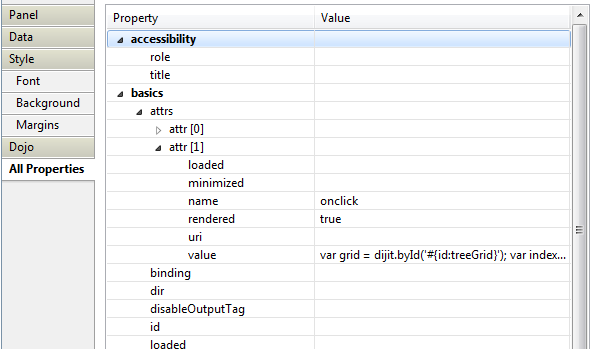
To make the Grid entries clickable, you have to add an event to the Panel that contains the TreeGrid.  This event must be manually added as follows.

1) Go to the All Properties of the Panel
2) Create a new attribute (attrs)
3) Name the attribute "onclick"
4) Enter the value as clientside javascript (more on this below)


The part that is somewhat confusing is that the value must be properly formatted javascript that is static text. If you compute the value then you do NOT have clientside javascript as a choice.  I believe that I found that this only worked when it didn't contain any carriage returns.  

The javascript code I used is as follows:
var grid = dijit.byId('#{id:treeGrid}'); var index = grid.selection.selectedIndex; var item = grid.getItem(index); var unid = item["id"]; var url = "/po/po.nsf/New_PO.xsp?doc=" + unid;if(unid.toString().length == 32){ window.document.location.href = url;}

The first line gets an handle to the grid.  The second line gets a handle to the grid index where your mouse is. The third line is getting the "id" of the row where your mouse is.  The fourth line is building a URL string using the id that you obtained.   

The fifth line is key.  Because each row has an "id", sometimes the id is the category value, and sometimes the id is the UNID of the document in that category.  I had no success trying to change the label of "id", it just breaks the grid.  The if statement checks if "id" is equal to 32, which is the length of a UNID.  If the "id" is not the UNID then it does nothing.  

The last thing I did was to change the pointer to a hand.  I did this by adding a second event attribute to the panel and calling it "onmouseover" and giving it a value of $('#treeGrid').css('cursor', 'pointer');

The only negative here was that the hand cursor is there even for the category rows that do not open.  I also see a potential bug here is you had a category size exactly equal to 32.

The Grid Styling Fix

The styling fix turned out to be that I was not using a theme that extended WebStandard.  Adding WebStandard fixed the styling issue but broke other things.  The fix is to add the dojo.css to your page as the first stylesheet and then also give the containing panel a class of "view-panel".  Thanks again to Brad Balassatis for figuring this out for me.

If your Dojo Tree Grid looks like this then use the fix above to correct the look.

This looks much better

One More Thing

I tried to make a Dojo TreeGrid using a view with two categories but was unable to get it to work.  If anyone knows how to do this, I would love to hear it.