Tuesday, June 24, 2014

Integrating Datepick.js into your XPage

No, Datepick.js is not another Javascript framework; it is simply a super awesome jQuery plug-in that I recently discovered, and put to use in my latest XPages project. 

There are many calendar plugins to use with jQuery.  Here is an article where someone decides which are the top ten. I entertained using some of these, specifically #1 and #6 in the list, until I discovered "jQuery Datepicker" by Keith Wood, which for some reason was not on this list. Once I discovered this one, I knew straight away that my search was over.  In this post, I will show you how I used jQuery Datepicker (datepick.js) within an XPage. 

Generally, this calendar is used like most datepickers, where it is shown via a button and then hidden again. However, i
n my use case, I wanted a full month calendar that was always visible in the left side navigation as shown below.  Below is the 'finished' result.

This is the finished result. The random number is there so I know it refreshes, but later will be meaningful content.


How I made it work

The first step is to download the source and copy it to your WebContent folder in your application. I recommend creating a "js" subdirectory and placing the files in there.  You then need to reference the files in your XPage using the <script> tag.

Step 1:  Download and add to page

The second step is to create a place to put the calendar and give it a class. I created a panel and gave it a class of ".calHere". 
Step 2 - Add a class where to put the calendar
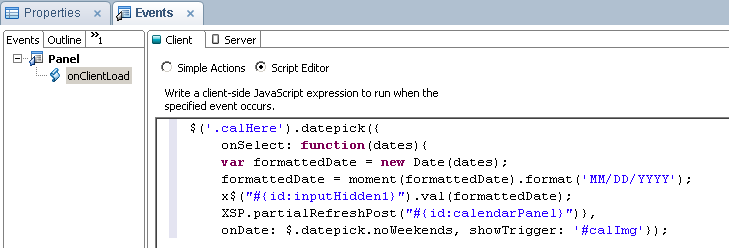
The third step is to create code to launch and process the calendar.  In the onClientLoad event of the panel, I have the following code. 
Step 3 - Format the calendar and figure out what to do with result

Code Explanation 

First it launches the calendar, and then assigns a function to the calendar's onSelect event.  Finally, it also prevents the user from selecting weekends, which is something in my specific requirements.   

Here is how I went about updating the backend data with the value selected in the calendar:
  1.  I first format the Javascript Date using moment.js, as very useful utility for all things time.
  2.   Then update a hidden input control in the content panel with the formatted date.  I make use here of Marky Roden's X$ function for selecting Domino ID's in jQuery.
  3.   Lastly, I force a partial refresh of the content panel using the built-in XSP object.
I am very pleased with how this came out.  I highly recommend that everyone at least become aware of Keith Wood's jQuery Datepicker.  The datepicker has every imaginable way that it can be customized both in functionality and style.  I wish I discovered this a long time ago.   

Monday, June 9, 2014

Force your expired XPage to return to the login page

One of things that I have found annoying about XPages apps is that an application page left open in the browser for a long time will act like it is usable, but in fact the session has timed out and the page is unusable. When you try to actually submit anything the page will fail, and you will have to re-login.  I work for a bank now, where they are very concerned with security so I wanted my application to work similar to most financial websites.  In addition, I find a page you can't use a very poor user experience.  I had some time while the project is ramping up, so I decided to do something about it.

In this post, I will go over a simple way to force the page to redirect to the login page after the session expires.  I was actually surprised when I researched this that I couldn't find anyone who had already done it.  I put this Stack Overflow question in, and Stephan Wissel answered it and pointed me in the right direction.  He reinforced what I suspected that I would have to do this entirely in the client.

What does it do, how does it work

The concept here is pretty simple, when you load a page it sets a timer.  Whenever you submit anything to the server, or switch tabs in the application the timer is reset.  The timer accepts two parameters, the time to wait, and the page to redirect to.  The function does NOT log you out, that is what happens automatically by the server, this simply makes the client aware of what already happened.  In my case, I redirect to the application home page, so that after the login is re-entered it goes where I want it to.  It would be easy to just make the function refresh the current page.

var timeoutID; 
function setAutoRefresh(refreshTime, relativePath) { 
        if(timeoutID){ 
                window.clearTimeout(timeoutID); 
        } 
        timeoutID = window.setTimeout(function(){ location.replace(relativePath);}, refreshTime); 
} 


The same function will work for setting and resetting the timer.   Not sure why you would, but if you wanted to, you could have any number of timeouts on a page by giving them different variables.

You call the function like this:
var pathArray = window.location.pathname.split( '/' ); 
var path = "/" + pathArray[1] + "/" + pathArray[2]; 
//returns relative path to application home, example: "/atm/atm.nsf" 
//1860000 represents 31 minutes, one minute after session timeout 
setAutoRefresh(1860000, path); 

I made my timer set to one minute after the default 30 minute session logout.  The way this is written now, if the time was set less then it would redirect to the page and skip the login page which to me defeats the purpose. One warning, if you miss resetting the timer then the page could redirect unexpectedly.  In my application, I call the function from the onClientLoad of my layout custom control once and then in each button that perform updates. Note:  If you are not using a layout custom control, then you will have to put this in the onClientLoad of every XPage.  

Potential Enhancements

The code I wrote is pretty basic, maybe too basic.   Here are a two ways that you could make it more robust:
  • When the timer is up, you could create an ajax call to ping the server, and then redirect the page if you get returned a "Not Authorized" message.  If the session is still active you could reset the timer.  With this method, you could load it once, and just have it run every ten minutes, and never have to worry about it.  
  • Another enhancement, would be not reset the timer when you switch tabs or submit anything, but instead reset if based on a mouse moving event.  I considered this but thought it overkill for the application I am writing and didn't want to be calling the function non-stop. 
If anyone had any better ways of doing this, or anything to add, please comment.


August 2016 Edit:  


For some strange reason David Leedy is unable to comment on my blog so I am adding his comment here.

I'm adapting this code for my day job and also a future MWLug presentation and maybe even NotesIn9. I had problems with the code as it seemed to hardcode in the level of folder nesting. I ended up using this:
var thisUrl = window.location.href;
var lastSlash = thisUrl.lastIndexOf("/");
var dbPath = thisUrl.substring(0, lastSlash);
var finalPath = dbPath + "?Logout&redirectto=" + dbPath + "/sessionExpired?OpenPage";


console.log("dbPath : " + dbPath);
console.log("FinalPath : " + finalPath);

//1 minute = 60,000 milliseconds
setAutoRefresh(60000,finalPath); 

Thanks to both you Steve, and Daniel for this post and comment! 

Wednesday, May 21, 2014

Angular JS - Another Tool in your XPages Toolbox - Part 2

In my previous post, I shared my reason for wanting to try to learn how to use Angular within an XPage.  In this post, I will show you how I used Angular to duplicate the functionality of a Dojo data grid on the same page.

My Existing XPage

In my existing XPage, I use the Extension Library REST service control to return data based on what the current user has rights to see.  The REST service use a formula for "keys" which filters the data based on the first column.  The REST service outputs JSON which is read by the Dojo Data Grid.
Dojo DataGrid 
There are two thing that have always bugged me about the Dojo grid that I created.  The first was that I could never get column sorting to work.  It seemed to have a conflict with the user of the keys property that I could not overcome.  The second thing that bugged me was that I could not get the grid to behave in a responsive manner.  When I shrink the screen, the Dojo grid would not shrink with it. I accept that it is possible that in both cases I was doing something wrong there, but I did spend a lot of time trying to get those things to work.

Grid using Angular

Since I duplicating what I did with Dojo, I used an Angular plug-in called ng-grid.  I used the very same JSON data to display the grid inside a <div>.
Grid using Angular
The Angular Grid not only looks good, but the column sorting works as well.  This grid is naturally responsive and solves my two big gripes with the Dojo grid. 

Look, I'm responsive

The 'How To' Section

Before I go through my steps, let me say that this is not a beginners guide to Angular, to really understand it.
There is a lot of information out on the web on Angular. I highly recommend Mark Roden's latest series on Angular which takes a methodical approach that is easy to follow.

1)  First you have to load the library on your page.  After downloading Angular from Google, I copied the library in a folder I created under the "Web Content" subdirectory.

2)  I then referenced the library using a <script> tag in only the page where I used Angular.  Use Firebug to check that you loaded everything correctly.
3) I then create a Controller file and call it grid-controller and place it is a subdirectory under the "Angular" folder under "Web Content".   Repeat step 2 for the controller file, making sure to account for the subdirectory in your script tag.

4) Normally for a page using Angular, you will add an attribute to the <html> tag of "ng-app" telling Angular that you are using it on the whole page.   In my case, I added the "ng-app" attribute to a <div> on my page.  I actually used a <xp:panel>, and set the tagName to render as a <div>. I did it this way because I wanted to show how you would use an XPage control where you also decide whether to render the grid based on certain conditions.  The easiest route though, is to pass HTML through like in the second example below.

This is all the code needed on the custom control.  Note: Once div is nested in the other.
This is how it would look if you pass the HTML straight through

5) Angular also needs you to specify the name of the Controller to use for a specific element.  A normal Angular application might use several controllers throughout the page to connect the data to the display.  You tell Angular which one for a specific section by using the ng-controller attribute. In my case, I am only using a single controller that I set in the same <div>.  Besides setting the style, that is all I have on the custom control.

6)  In my controller, I need to tell where to get the model (data) to send to the view (XPage).  As I stated above, I am using the same JSON data as the Dojo Grid.  To access the JSON, I use $http.get() method to read the URL of my REST Service.  Remember, you can the pathInfo attribute in your REST service, which allows you to see the JSON in a URL. I set my pathInfo to "restData".  The result is set to a variable called $scope, which acts as your return value of the controller.

The Controller which in Angular connects the data and the display
From line 8 to the end is specific to the ng-grid plug-in which I explain below. Everything outlined up to this point is all you need to test out Angular in your XPage.  Before I added the grid to my demo, I was able to display the whole list using ng-repeat. I was also able to reference the data is $scope using direct references like this {poDoc[0].Status}}  The controller returns an array in this case. I could have done anything you can do in Angular to the data. I encourage you to give it a try.

The last part of the code refines the $scope to sets options and format for the grid.  In order to get the grid to work it had to be in its own <div> that was a child of the <div> where I set the ng-app and ng-controller.  The grid is not part of core Angular so in order to use it I did had to download and a separate javascript and css file. To find ng-grid look here, note that it has a dependency on jQuery. It gets a thumbs up in my book.

Where to from here

I am really intrigued by Angular, so I will continue to experiment with it.  Next, I would like to enhance the example here to allow the grid to launch documents and perform searching/filtering.  If the result is worth sharing then I will make a part 3 of this series.